

Close Menu
  • Home
  • Tech News
  • Business
  • How to
  • Technology
    • Internet
    • Software
    • Android
    • Apple
    • Laptops
  • Cryptocurrency
    • Bitcoin
    • Blockchain
  • Alternatives
    • Troubleshooting
    • Discord
    • Gaming
    • Buyer Guides
What's New

How to Free Up Google Drive and Gmail Storage Without Paying (7 Smart Tricks)

October 26, 2026

How to Fix High CPU and RAM Usage in Windows 11 (8 Proven Optimization Steps)

October 25, 2026

How to Fix iPhone Battery Draining Fast After an iOS Update (9 Proven Fixes)

October 24, 2026
Facebook X (Twitter) LinkedIn
  • About
  • Contact
  • Privacy Policy
  • Terms of Service
  • Write For Us
  • Editorial Guidelines
Facebook X (Twitter) LinkedIn
TechDentro
  • Home
  • Tech News
  • Business
  • How to
  • Technology
    • Internet
    • Software
    • Android
    • Apple
    • Laptops
  • Cryptocurrency
    • Bitcoin
    • Blockchain
  • Alternatives
    • Troubleshooting
    • Discord
    • Gaming
    • Buyer Guides
TechDentro
Home » A Comprehensive Step-By-Step Guide | How To Forget A Network On Mac
Internet

A Comprehensive Step-By-Step Guide | How To Forget A Network On Mac

SteveBy SteveFebruary 10, 2024No Comments3 Mins Read
Facebook Twitter Pinterest LinkedIn
How To Forget A Network On Mac
Share
Facebook Twitter LinkedIn Pinterest Telegram WhatsApp

Introduction 

In this face of life, computers and laptops are preferable. Sometimes, the devices remember the wifi password and automatically connect when you are in range. Also, this saves a lot of time to connect to the network repeatedly, but sometimes it could be more annoying if you use the wrong wifi network. So if you are facing these problems, don’t worry about the solution.

Table of Contents

Toggle
  • Introduction 
  • How Do You Forget A Wifi Network On A Mac?
    • Step 1: Open Network Options
    • Step 2: Navigation Of Process
    • Step 3: Access Network Preference 
    • Step 4: Choose The Wifi
    • Step 5: Confirm The Action
    • Step 6: Verification Of OK
    • Step 7: Apply Changes
  • Always Prioritize Security First
  • Final Verdict

You can easily use different methods to stop your Mac from signing into another wifi. Here, we will intensely discuss how to forget a wifi network on a Mac. Let’s Explore.

How Do You Forget A Wifi Network On A Mac?
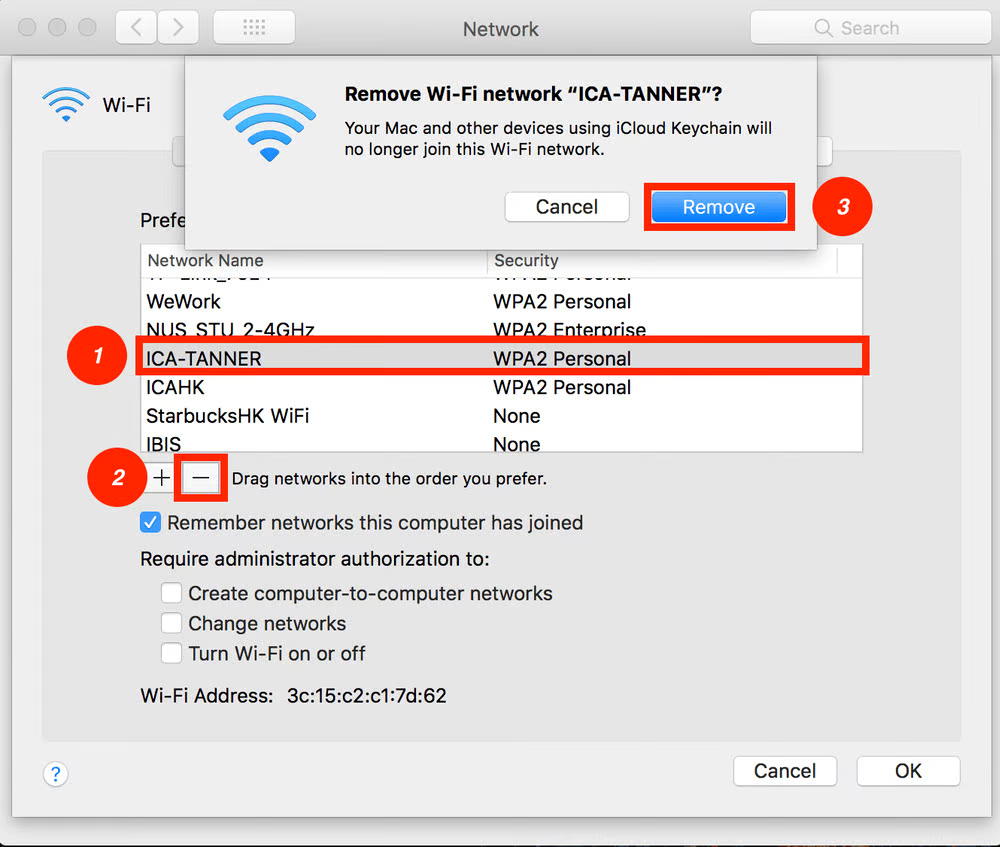
How To Forget A Network On Mac

Here is an easy step-by-step process for how to forget a wifi network on a Mac.

Step 1: Open Network Options

Tab on the wifi icon in the upper right corner of your screen. The wifi symbol will be like a quarter circle with a curved line radiating up.

Step 2: Navigation Of Process

Choose the open network that you want to forget. The Open Network Preference Button is at the button of the drop-down menu.

Step 3: Access Network Preference 

Choose the wifi in the left sidebar and tap on Advanced at the bottom right corner of the window. This will help you to be shown all the wifi networks in your range or you had previously connected.

Step 4: Choose The Wifi

Select the specific network that needs to be forgotten on the Mac and click the minus sign. Always make sure to choose the accurate network that you want to remove from your device.

Step 5: Confirm The Action

Tap on the remove option. A pop-up verification will appear asking you to confirm the removal of the wifi.

Step 6: Verification Of OK

Tap “OK”. It will allow you to proceed.

Step 7: Apply Changes

At last, tap on apply. You apply the the process.

By following this method, you can easily forget the network on Mac. Ensure you apply the process accurately so it will help you.

Always Prioritize Security First

Always first prioritize your security above all. Remove all the networks that we do not know, recognize, or trust, especially when you are connecting to wifi hotspots in public. It’s essential to monitor the list of networks regularly to protect your personal information from any scams.

However, by staying protective in managing the wifi network on the map, you will have a smooth experience.

Final Verdict

The advanced world of computer laptops and automatic wifi connections can save time, but it can also be annoying and frustrating if your device doesn’t connect to unknown wifi networks. It is a source of frustration and harm to your device. In this article, we have discussed a simple process of how to forget and network on Mac in easy steps. By following all these steps, you will easily forget the network on Mac, which will help you to have a smooth experience.

Related Articles:

Fix: Network Disabled, Poor Connection Error

Easy Steps to Change the WiFi Password of Your Dialog Router

Firestick Keeps Losing Connection? Here’s the Fix!

Share. Facebook Twitter Pinterest LinkedIn Telegram WhatsApp
Steve

Steve currently serves as a chief editor at Techdentro, covering all things Tech, from laptops and desktops to keyboards and mice. He's also passionate about solving android mobile issues.

Related Posts

How to Free Up Google Drive and Gmail Storage Without Paying (7 Smart Tricks)

October 26, 2026

Spectrum Internet Keeps Cutting Out? Troubleshooting Tips

April 20, 2024

Fix: Network Adapter Error Hamachi

April 20, 2024
Leave A Reply Cancel Reply

Recent News

October 26, 20262 Mins Read

How to Free Up Google Drive and Gmail Storage Without Paying (7 Smart Tricks)

October 25, 20262 Mins Read

How to Fix High CPU and RAM Usage in Windows 11 (8 Proven Optimization Steps)

October 24, 20262 Mins Read

How to Fix iPhone Battery Draining Fast After an iOS Update (9 Proven Fixes)

October 23, 20263 Mins Read

How to Speed Up a Slow Android Phone in 2026 (10 Proven Performance Tweaks)

October 22, 20263 Mins Read

How to Fix Windows 11 Wi-Fi Keeps Disconnecting (9 Proven Solutions)

Follow Us
  • Facebook
  • Twitter
  • LinkedIn

Top Posts

Technology

Uvlack: The Digital Transformation Powerhouse Reshaping Business Innovation

By JosephOctober 12, 2025
Buyer Guides

Workstation Laptop vs Gaming Laptop: Which is better?

By SteveDecember 20, 2024
Technology

Mastering IT Asset Management: The Key to Streamlined Operations

By Syed QasimDecember 25, 2024

techdentro logo


TechDentro is the place where you can find solutions for your tech problems, discover the latest releases, and get opinions from the experts.

Email: techdentro@gmail.com

news logo

Most Popular

How to Check Hotmail Junk Mail on Android – The Easy Way

September 22, 2020126 Views

Firestick Keeps Losing Connection? Here’s the Fix!

May 23, 2021370 Views
Recent Posts

How to Free Up Google Drive and Gmail Storage Without Paying (7 Smart Tricks)

October 26, 2026

How to Fix High CPU and RAM Usage in Windows 11 (8 Proven Optimization Steps)

October 25, 2026
serpzilla
Facebook X (Twitter) LinkedIn
  • About
  • Contact
  • Privacy Policy
  • Terms of Service
  • Write For Us
  • Editorial Guidelines
© 2026 Techdentro All Rights Reserved

Type above and press Enter to search. Press Esc to cancel.