Over time, even flagship Samsung Galaxy, Google Pixel, Xiaomi, and OnePlus smartphones can start feeling sluggish—with choppy scrolling, delayed keyboard pop-ups, and apps reloading in the background. Before spending money on an upgrade, you can restore near-out-of-the-box speed on your Android phone in under 10 minutes using the system optimizations below.
1. Speed Up UI Animations in Developer Options (0.5x Trick)
Reducing the time Android spends rendering window transitions makes every tap feel twice as responsive.
- Open Settings → About phone → Software information.
- Tap Build number 7 times until you see You are now a developer!
- Go back to Settings → System / Developer options.
- Scroll down to Window animation scale, Transition animation scale, and Animator duration scale, and change all three from
1xto0.5x.
2. Turn Off Virtual RAM (RAM Plus / Memory Extension) on 8GB+ Phones
Many Android skins enable 4GB–8GB of virtual RAM using slow internal flash storage. If your phone already has 8GB or 12GB of physical LPDDR5 RAM, virtual swap memory actually causes micro-stutters.
- On Samsung: Go to Settings → Device care → Memory → RAM Plus and toggle it Off, then reboot.
- On Xiaomi/OnePlus: Go to Additional settings → Memory extension and disable it.
3. Keep at Least 20% of Internal Storage Free
UFS flash storage slows down dramatically when capacity exceeds 85% because the controller cannot efficiently manage wear-leveling and temporary cache writes. Delete old WhatsApp media backups, offline downloads, and duplicate 4K videos via the Files by Google app.
4. Audit Background Processes and Deep-Sleep Unused Apps
Social and shopping apps constantly wake your CPU in the background to fetch notifications and location data.
- Go to Settings → Battery → Background usage limits.
- Enable Put unused apps to sleep and add heavy apps you rarely need instant alerts from to the Deep sleeping apps list.
5. Clear Heavy Browser and Social App Caches
Chrome, Instagram, TikTok, and Telegram easily accumulate 5GB–15GB of cached media fragments. Long-press the app icon → App info (i) → Storage & cache → tap Clear cache (do not tap Clear storage unless you want to log in again).
6. Update Google Play System & WebView Components
Android System WebView powers the in-app browsers inside dozens of daily apps. Open the Google Play Store, tap your profile icon → Manage apps & device → Update all, and check Settings → Security & privacy → Updates → Google Play system update.
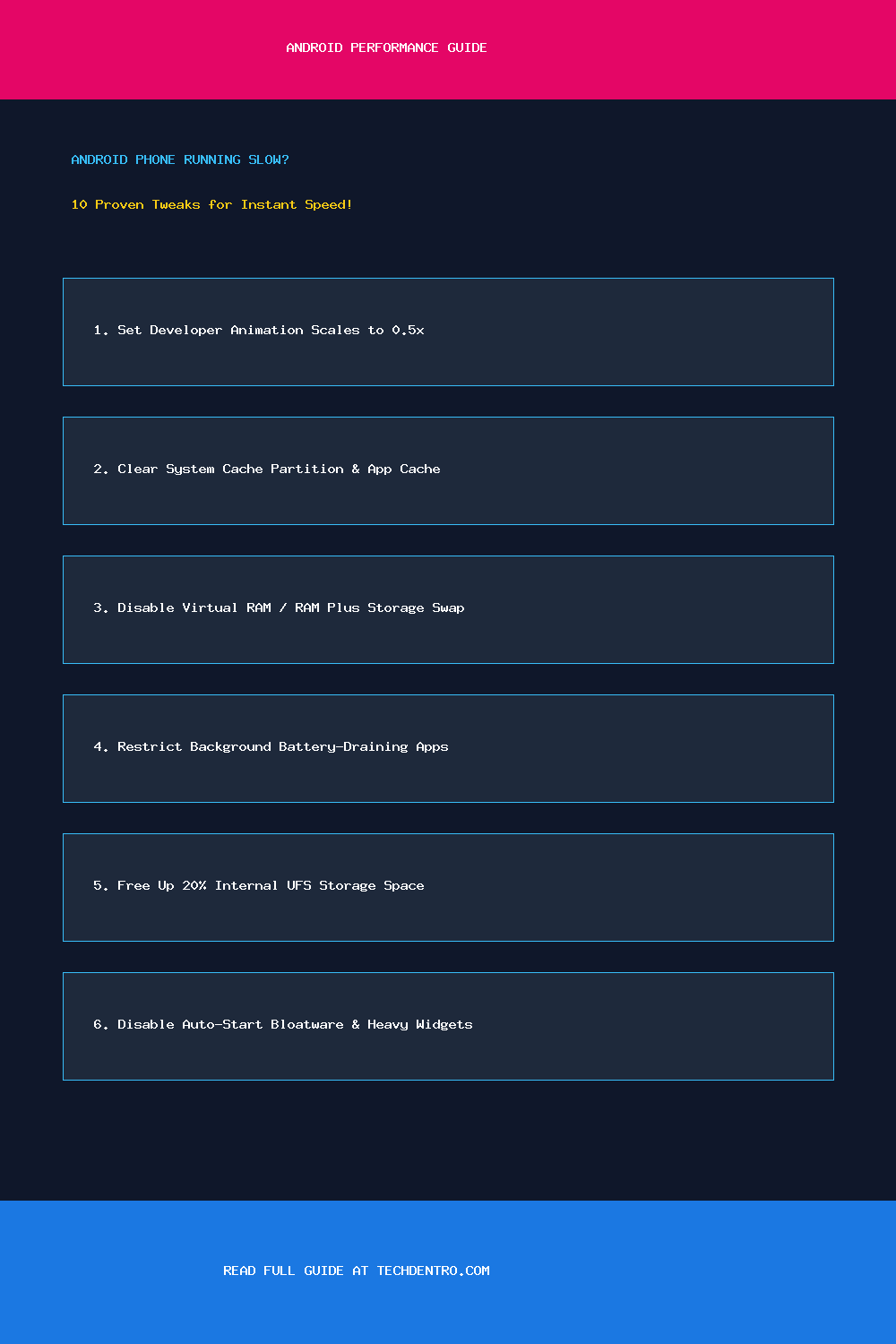
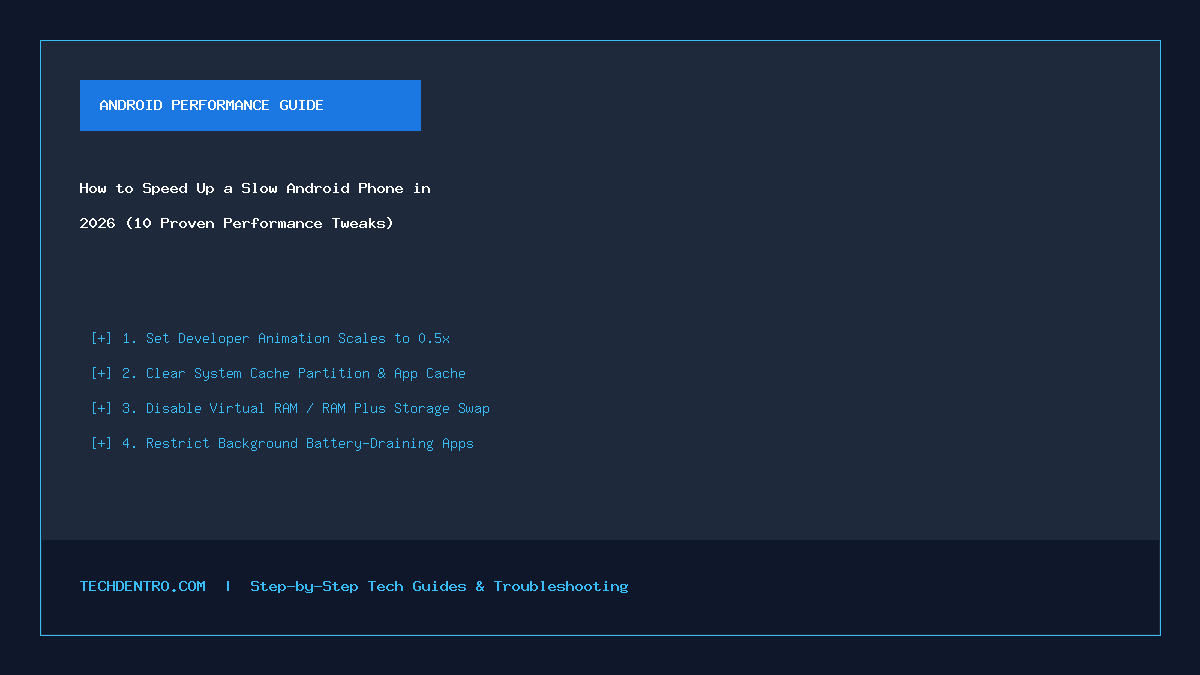
📌 Save This Quick-Reference Guide on Pinterest!
Found this guide helpful? Save the checklist below to your Tech Tips & Troubleshooting board on Pinterest (@Techdentro) for quick access anytime!