Noticing your iPhone battery percentage dropping rapidly within hours of installing a new iOS update is a widespread issue. While Spotlight re-indexing and Photos machine-learning scans naturally consume extra power for the first 24 to 48 hours after an update, persistent battery drain is usually triggered by new background services, Always-On Display settings, and 5G modem polling.
1. Restrict Background App Refresh to Wi-Fi or Off
Allowing dozens of apps to fetch content over cellular data in the background is the #1 hidden battery killer on iOS.
- Open Settings → General → Background App Refresh.
- Either set the master setting to Wi-Fi, or individually toggle off heavy apps like Instagram, Facebook, X, and retail shopping apps.
2. Switch Cellular Data from 5G On to 5G Auto
Forcing a continuous 5G connection in areas with moderate signal strength causes your iPhone’s Qualcomm modem to run hot and drain battery up to 25% faster.
- Go to Settings → Cellular → Cellular Data Options → Voice & Data.
- Select 5G Auto so your iPhone automatically drops to LTE when 5G speeds aren’t needed.
3. Audit Lock Screen Widgets and Live Activities
Lock Screen widgets (Weather, Fitness, Stocks) and Live Activities constantly poll GPS and network APIs every time your screen wakes.
- Long-press your Lock Screen, tap Customize, and remove widgets you don’t check daily.
- On Pro models, go to Settings → Display & Brightness → Always On Display and turn off Show Wallpaper.
4. Disable Unnecessary System Location Services
Hidden iOS system services ping your GPS chip hundreds of times a day.
- Navigate to Settings → Privacy & Security → Location Services.
- Scroll to the very bottom and tap System Services.
- Turn off Significant Locations, iPhone Analytics, and Routing & Traffic.
5. Turn Off Haptic Keyboard Feedback
Apple herself notes in official support documentation that turning on Keyboard Haptics engages the Taptic Engine on every single keystroke, measurably impacting battery life. Disable it under Settings → Sounds & Haptics → Keyboard Feedback → Haptic.
6. Perform a Hard Force Restart to Clear Stuck Background Daemons
If Spotlight indexing hangs after an OTA iOS update, your iPhone feels warm even while idle. Quickly press and release Volume Up, press and release Volume Down, then press and hold the Side Button until the Apple logo appears.
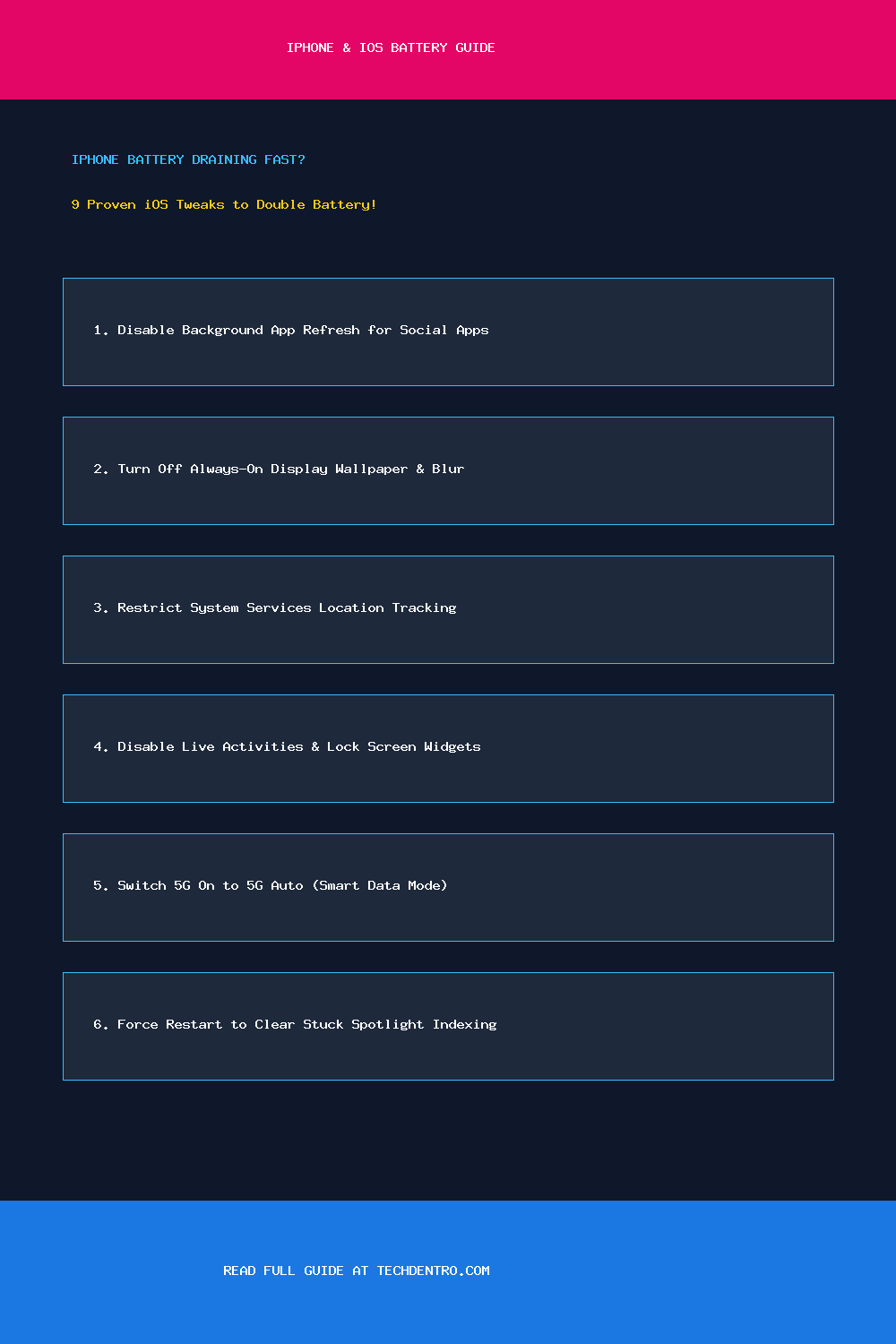
📌 Save This Quick-Reference Guide on Pinterest!
Found this guide helpful? Save the checklist below to your Tech Tips & Troubleshooting board on Pinterest (@Techdentro) for quick access anytime!