
Close Menu
  • Home
  • Tech News
  • Business
  • How to
  • Technology
    • Internet
    • Software
    • Android
    • Apple
    • Laptops
  • Cryptocurrency
    • Bitcoin
    • Blockchain
  • Alternatives
    • Troubleshooting
    • Discord
    • Gaming
    • Buyer Guides
What's New

How to Fix Windows 11 Wi-Fi Keeps Disconnecting (9 Proven Solutions)

October 22, 2026

How to Fix ‘Wi-Fi Connected But No Internet Access’ in Windows 11 (9 Proven Fixes)

October 21, 2026

The Power of Nature Connection: How Forest Therapy Helps People Reconnect With the Natural World

September 19, 2026
Facebook X (Twitter) LinkedIn
  • About
  • Contact
  • Privacy Policy
  • Terms of Service
  • Write For Us
  • Editorial Guidelines
Facebook X (Twitter) LinkedIn
TechDentro
  • Home
  • Tech News
  • Business
  • How to
  • Technology
    • Internet
    • Software
    • Android
    • Apple
    • Laptops
  • Cryptocurrency
    • Bitcoin
    • Blockchain
  • Alternatives
    • Troubleshooting
    • Discord
    • Gaming
    • Buyer Guides
TechDentro
Home » How to Fix Windows 11 Wi-Fi Keeps Disconnecting (9 Proven Solutions)
How to

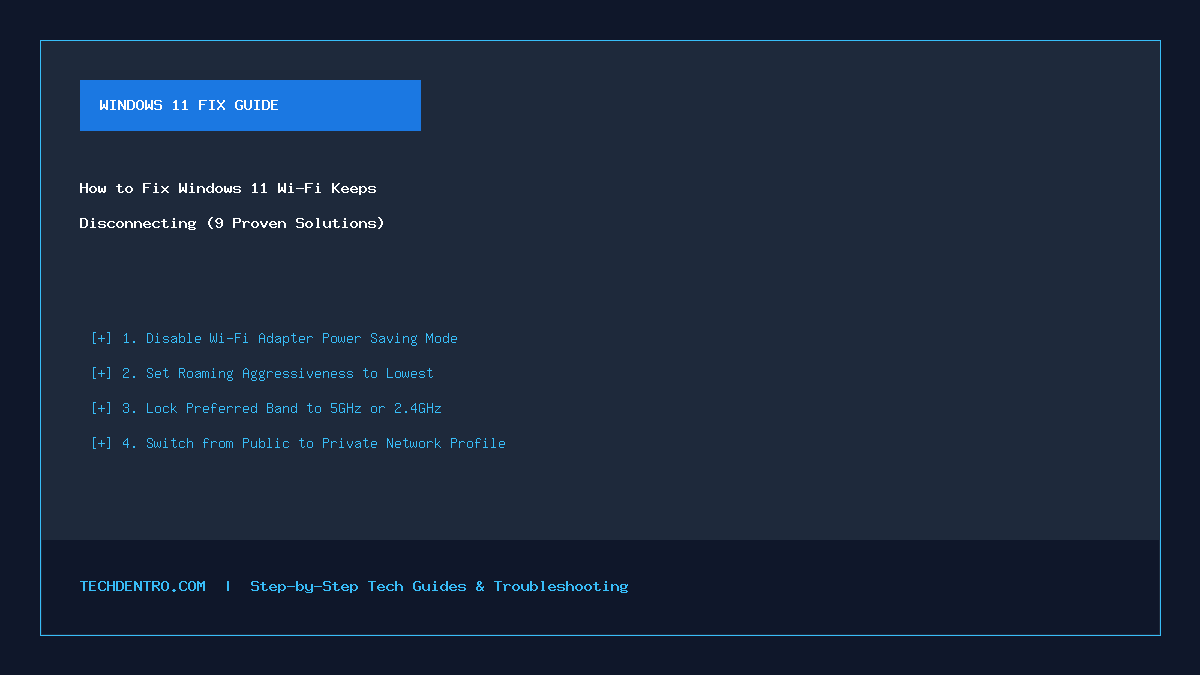
How to Fix Windows 11 Wi-Fi Keeps Disconnecting (9 Proven Solutions)

SteveBy SteveOctober 22, 2026No Comments3 Mins Read
Facebook Twitter Pinterest LinkedIn
How to Fix Windows 11 Wi-Fi Keeps Disconnecting (9 Proven Solutions)
Share
Facebook Twitter LinkedIn Pinterest Telegram WhatsApp

Experiencing frequent Wi-Fi disconnects on your Windows 11 laptop or desktop can bring your work, gaming, or video calls to a grinding halt. Whether your wireless connection drops every few minutes, fails to reconnect after waking from sleep, or bounces between 2.4GHz and 5GHz bands, network instability in Windows 11 is almost always caused by aggressive power-saving defaults or driver conflicts.

Table of Contents

Toggle
  • Fix 1: Disable Wi-Fi Power Saving in Device Manager
  • Fix 2: Adjust Wireless Roaming Aggressiveness
  • Fix 3: Lock Your Preferred Wireless Band (5GHz vs. 2.4GHz)
  • Fix 4: Reset TCP/IP, Winsock, and DHCP Lease
  • Fix 5: Change Power Plan Wireless Adapter Settings to Maximum Performance
  • Fix 6: Disable WMM (Wi-Fi Multimedia) or 802.11be/ax Incompatibilities
    • 📌 Save This Quick-Reference Guide on Pinterest!

Fix 1: Disable Wi-Fi Power Saving in Device Manager

By default, Windows 11 turns off power to your wireless card during brief idle moments to conserve battery, which frequently drops active router sessions.

  1. Right-click the Start button and open Device Manager.
  2. Expand Network adapters and double-click your Wi-Fi card (Intel, Realtek, Qualcomm, or MediaTek).
  3. Open the Power Management tab and uncheck Allow the computer to turn off this device to save power.
  4. If your laptop uses Modern Standby and hides that tab, go to the Advanced tab, select MIMO Power Save Mode, and set it to No SMPS.

Fix 2: Adjust Wireless Roaming Aggressiveness

If you use a mesh Wi-Fi system or dual-band router, high roaming sensitivity causes your PC to constantly disconnect while hunting for a slightly stronger access point.

  1. In Device Manager → Network adapters, open your Wi-Fi adapter Properties → Advanced tab.
  2. Click Roaming Aggressiveness (or Roaming Sensitivity).
  3. Change the value from 3. Medium to 1. Lowest (if your PC stays in one room) and click OK.

Fix 3: Lock Your Preferred Wireless Band (5GHz vs. 2.4GHz)

Routers with Smart Connect combine 2.4GHz and 5GHz under a single Wi-Fi name (SSID). When signal strength fluctuates, your adapter drops the connection while switching bands.

  1. Open your Wi-Fi adapter’s Advanced tab in Device Manager.
  2. Select Preferred Band.
  3. Set it to Prefer 5GHz band for high speed near the router, or Prefer 2.4GHz band for stable range through walls.

Fix 4: Reset TCP/IP, Winsock, and DHCP Lease

Corrupted socket states after a Windows 11 cumulative update frequently trigger intermittent dropouts.

  1. Open Command Prompt as Administrator.
  2. Run these commands in order:
    netsh winsock reset
    netsh int ip reset
    ipconfig /release
    ipconfig /renew
    ipconfig /flushdns
  3. Restart your PC to apply the clean network stack.

Fix 5: Change Power Plan Wireless Adapter Settings to Maximum Performance

Ensure your Windows power plan is not throttling PCIe and wireless link states on battery power.

  1. Press Win + R, type control powercfg.cpl, and press Enter.
  2. Click Change plan settings → Change advanced power settings.
  3. Expand Wireless Adapter Settings → Power Saving Mode and set both On battery and Plugged in to Maximum Performance.

Fix 6: Disable WMM (Wi-Fi Multimedia) or 802.11be/ax Incompatibilities

When connecting a newer Wi-Fi 6E/7 laptop to an older router, packet scheduling mismatches can reset the connection every 10–15 minutes. In the adapter Advanced tab, set 802.11n/ac/ax Wireless Mode to 802.11ac to verify stability.


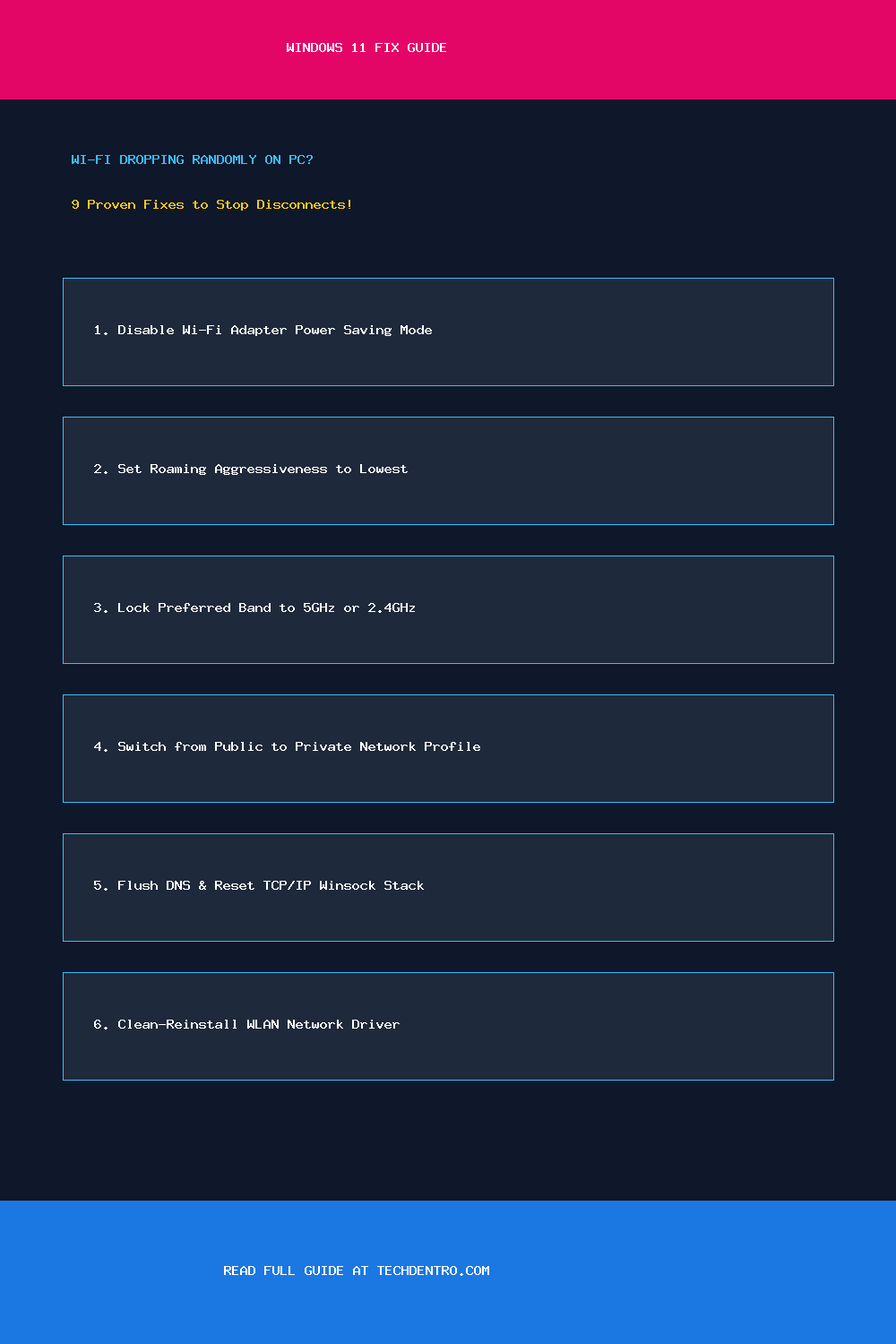
📌 Save This Quick-Reference Guide on Pinterest!

Found this guide helpful? Save the checklist below to your Tech Tips & Troubleshooting board on Pinterest (@Techdentro) for quick access anytime!
How to Fix Windows 11 Wi-Fi Keeps Disconnecting (9 Proven Solutions)
Share. Facebook Twitter Pinterest LinkedIn Telegram WhatsApp
Steve

Steve currently serves as a chief editor at Techdentro, covering all things Tech, from laptops and desktops to keyboards and mice. He's also passionate about solving android mobile issues.

Related Posts

How to Fix ‘Wi-Fi Connected But No Internet Access’ in Windows 11 (9 Proven Fixes)

October 21, 2026

10 Most Influential Female Leaders in The Technology Space

February 22, 2026

How EV Charging Apps Help You Find the Best Charging Stations Faster

January 20, 2026
Leave A Reply Cancel Reply

Recent News

October 22, 20263 Mins Read

How to Fix Windows 11 Wi-Fi Keeps Disconnecting (9 Proven Solutions)

October 21, 20267 Mins Read

How to Fix ‘Wi-Fi Connected But No Internet Access’ in Windows 11 (9 Proven Fixes)

September 19, 20263 Mins Read

The Power of Nature Connection: How Forest Therapy Helps People Reconnect With the Natural World

August 10, 20266 Mins Read

How Small Brands Can Use Practical Merchandise Without Wasting Budget

July 8, 20266 Mins Read

The Benefits of Commercial Intruder Alarm Systems for UK Businesses

Follow Us
  • Facebook
  • Twitter
  • LinkedIn

Top Posts

Technology

The Future of Making Things: How Automation is Transforming Manufacturing

By Muhammad MateenMarch 26, 2024
WhatsApp

Exploring Luzia AI In Whatsapp | How It’s Luzia Whatsapp Works, Features, Benefits & More

By SteveFebruary 3, 2024
Technology

Yell51x-Ouz4: Understanding the Future of Digital Identifiers

By JosephOctober 6, 2025

techdentro logo


TechDentro is the place where you can find solutions for your tech problems, discover the latest releases, and get opinions from the experts.

Email: techdentro@gmail.com

news logo

Most Popular

Are You an Entrepreneur? Here’s Why You’ll Need a Business Law Attorney

December 28, 202453 Views

Can Canada’s Skilled Immigrants Face the Challenges?

May 31, 202487 Views
Recent Posts

How to Fix Windows 11 Wi-Fi Keeps Disconnecting (9 Proven Solutions)

October 22, 2026

How to Fix ‘Wi-Fi Connected But No Internet Access’ in Windows 11 (9 Proven Fixes)

October 21, 2026
serpzilla
Facebook X (Twitter) LinkedIn
  • About
  • Contact
  • Privacy Policy
  • Terms of Service
  • Write For Us
  • Editorial Guidelines
© 2026 Techdentro All Rights Reserved

Type above and press Enter to search. Press Esc to cancel.