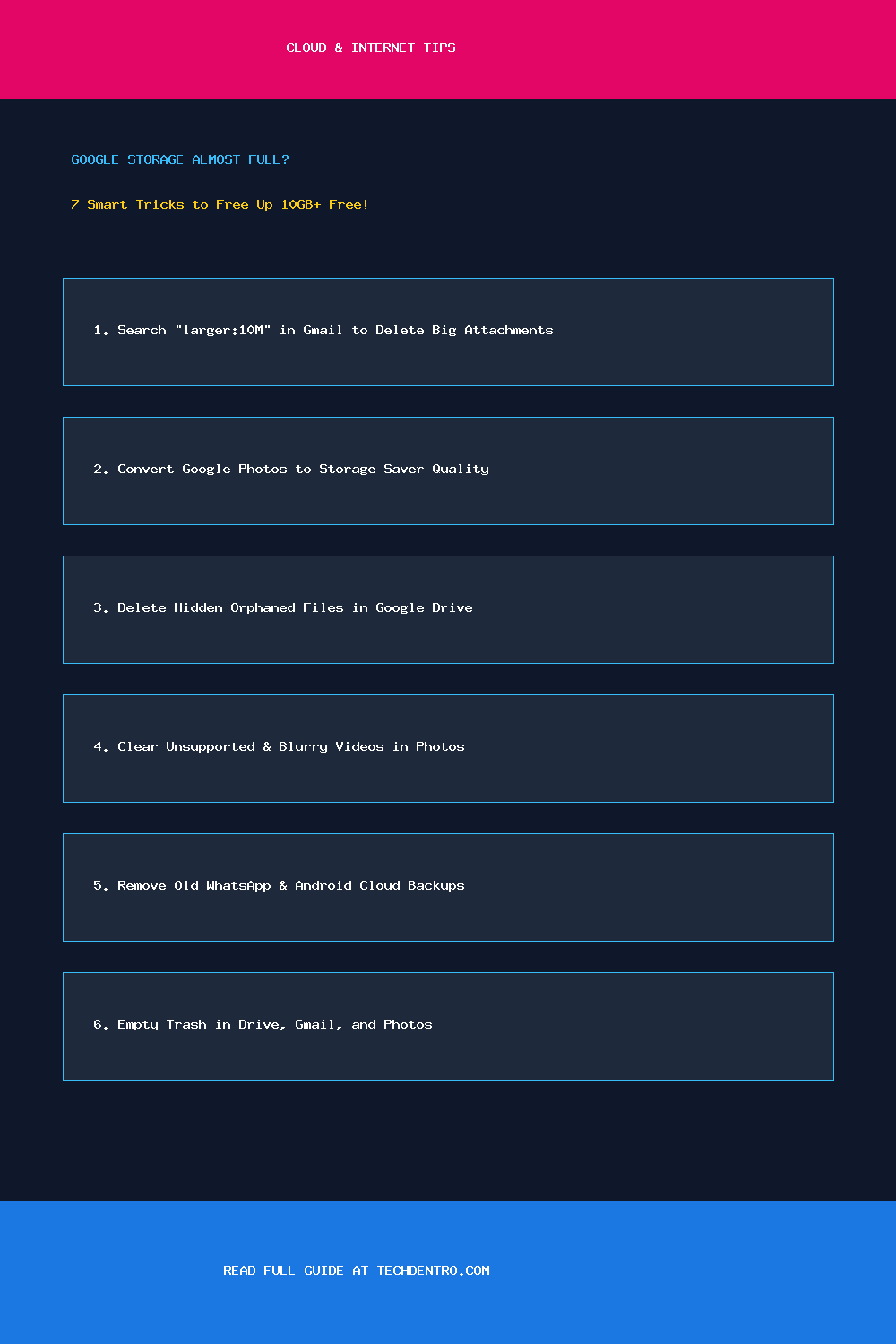
Every free Google account shares a single 15GB storage pool across Gmail, Google Drive, and Google Photos. Once that 15GB limit hits 100%, Gmail immediately stops sending and receiving emails. Before paying for a monthly Google One subscription, follow these 7 hidden cleanup tricks to reclaim gigabytes of space in under 10 minutes.
1. Find and Delete Massive Gmail Attachments Using Search Operators
Deleting thousands of plain-text emails barely frees a few megabytes, whereas deleting 30 old emails with video or PDF attachments can instantly free several gigabytes.
- Open Gmail in your browser.
- In the top search bar, type
has:attachment larger:10Mand press Enter. - Select the old emails you no longer need, click the Delete (Trash) icon, and then open your Trash folder and click Empty Trash now.
2. Bulk-Delete Promotional and Social Emails (`category:promotions`)
Type category:promotions older_than:1y in the Gmail search bar, click the top-left checkbox, click Select all conversations that match this search, and delete them in one batch.
3. Compress Existing Google Photos with “Recover Storage”
Google Photos is usually the biggest consumer of the 15GB quota.
- Go to photos.google.com/quotamanagement on your computer.
- Under Review and delete, clear out Large photos and videos and Blurry photos.
- Click Convert existing photos and videos to Storage saver to compress uncompressed Original-quality uploads without losing visible detail.
4. Sort Google Drive by File Size (`drive.google.com/drive/quota`)
Visit drive.google.com/drive/quota directly. This special view lists every file in your Google Drive from largest to smallest so you can immediately spot forgotten `.zip` archives, screen recordings, or ISO files.
5. Find Hidden “Orphaned” Files in Google Drive
When a shared folder is deleted, files you uploaded inside it can become orphaned—still counting against your storage while invisible in your folders. Type is:unorganized owner:me in the Google Drive search bar to reveal and delete them.
6. Empty All Three Trash Bins (Gmail, Drive, and Photos)
Deleted files still count toward your 15GB limit for 30 days until you manually empty the Trash inside Google Drive → Trash, Google Photos → Trash, and Gmail → Trash.
📌 Save This Quick-Reference Guide on Pinterest!
Found this guide helpful? Save the checklist below to your Tech Tips & Troubleshooting board on Pinterest (@Techdentro) for quick access anytime!