


Twitch is a popular online video streaming and broadcasting service that enables you to stream entertainment content, including video games, E-sports streams, live videos, shows, music, etc. You can also broadcast live Content through your webcam on Twitch. Talking about Error 5000, it is an error that displays Content not available message during Twitch streams. It hinders your video streaming experience and prevents you from watching your favorite broadcasts.
What causes Error 5000 in Twitch?
There can be several reasons for Error 5000 in Twitch. Some of the most probable causes of this error are:
- Issues with Flash plugin in your web browser can be a reason.
- Because of some problematic browser extensions or addons installed in your web browser.
- You might be getting this error due to older browser cache and cookies.
- Another reason can be DNS Issues.
Also, you may need to make sure if Twitch is down. You can ask other streamers or the community that is Twitch down?
How to Fix Twitch error 5000?
To stop getting Twitch error 5000, you can use multiple solutions. In this article, I am going to discuss methods that you can use to fix this problem.
Method 1: Clear Browser Cookies and Cache
Sometimes, the reason that may be causing the error in Twitch is old cache and cookies bulking up in your web browser. So, it is best to clear your browser’s cookies and cache to fix this error. Here are the steps to clear the cache in two popular web browsers. Let’s get started!
If you use Google Chrome, here are the steps to clear up your browser:
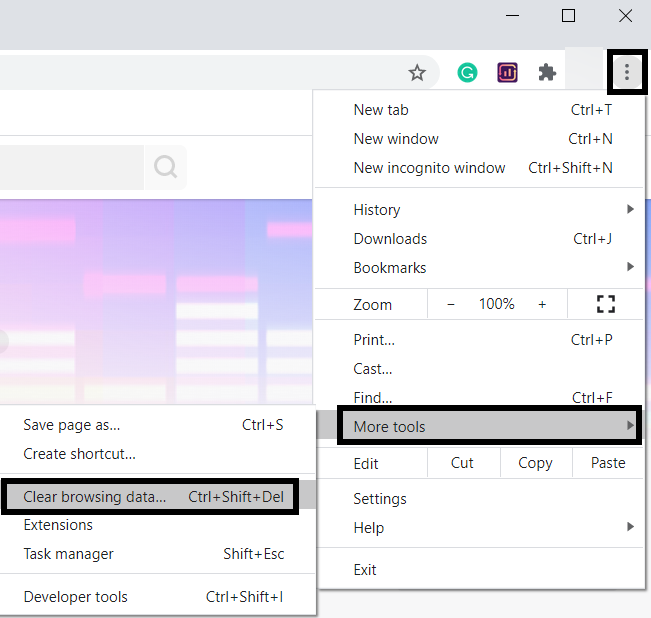
- Open Google Chrome and go to the three-dot menu present at the top-right section of its interface.
- From the menu option, go to the More Tools and then Clear Browsing Data option. You can also press the “Ctrl+Shift+Delete” keys together to open up this option.
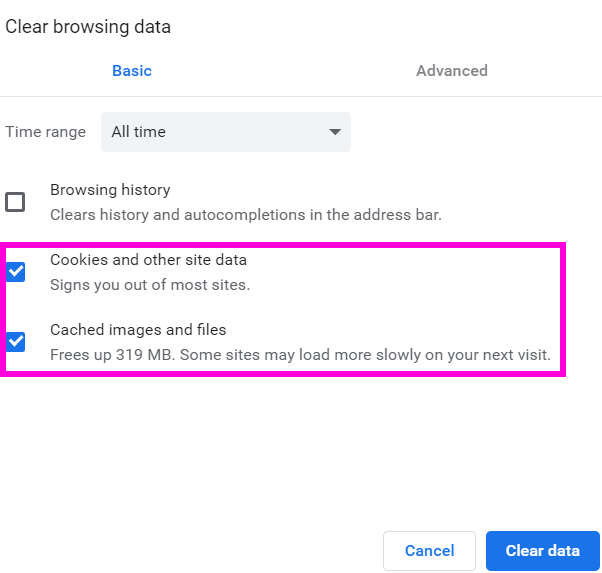
- Now, select Cookies and other site data and Cached images and files options from the dialog window and click on the Clear Data button.
For Mozilla Firefox, follow the steps below:
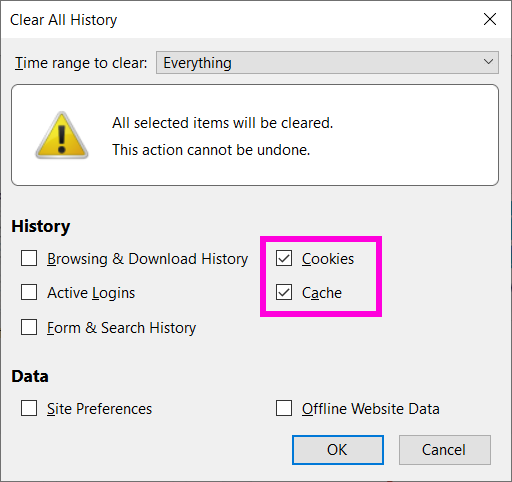
- In Firefox, go to the three-dot menu and navigate to Library > History > Clear Recent History.
- Now, select Cookies and Cache options and then click the Ok button to remove browsed data.
Method 2: Allow Flash
To ensure you don’t get the error, Flash must be working properly in your browser. You can turn Flash on in Google Chrome by following the steps below:
Step 1: Open twitch.tv in Chrome.
Step 2: Now, click on the padlock icon (view site information) before the website search bar.
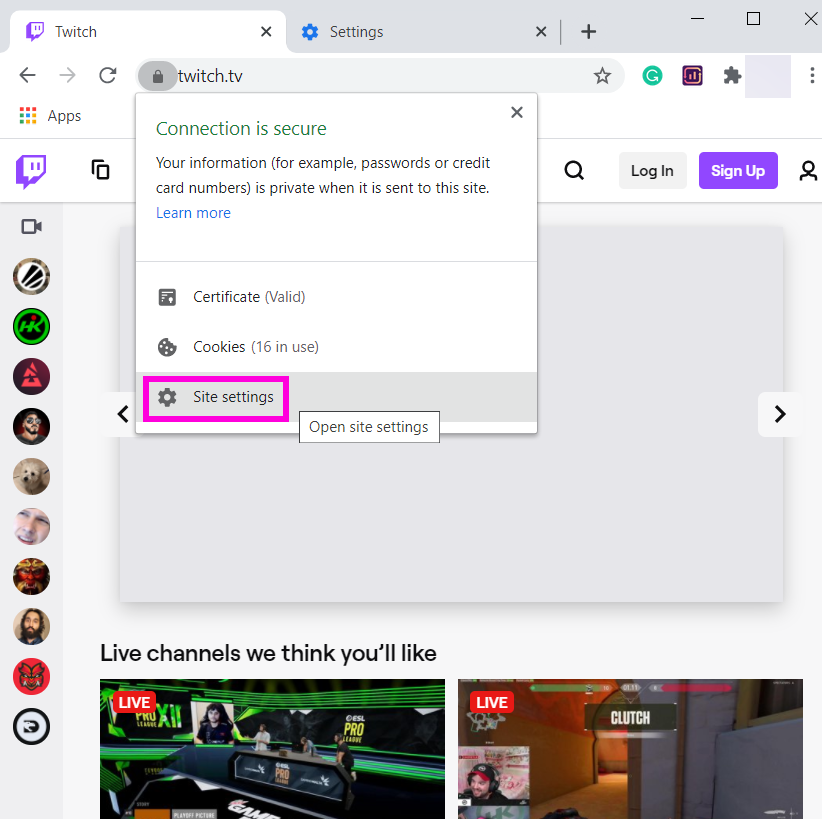
Step 3: After that, tap on the Site Settings option.
Step 4: In the Settings, go down to the Flash option and turn it on by clicking on the “Allow” option from the drop-down menu.
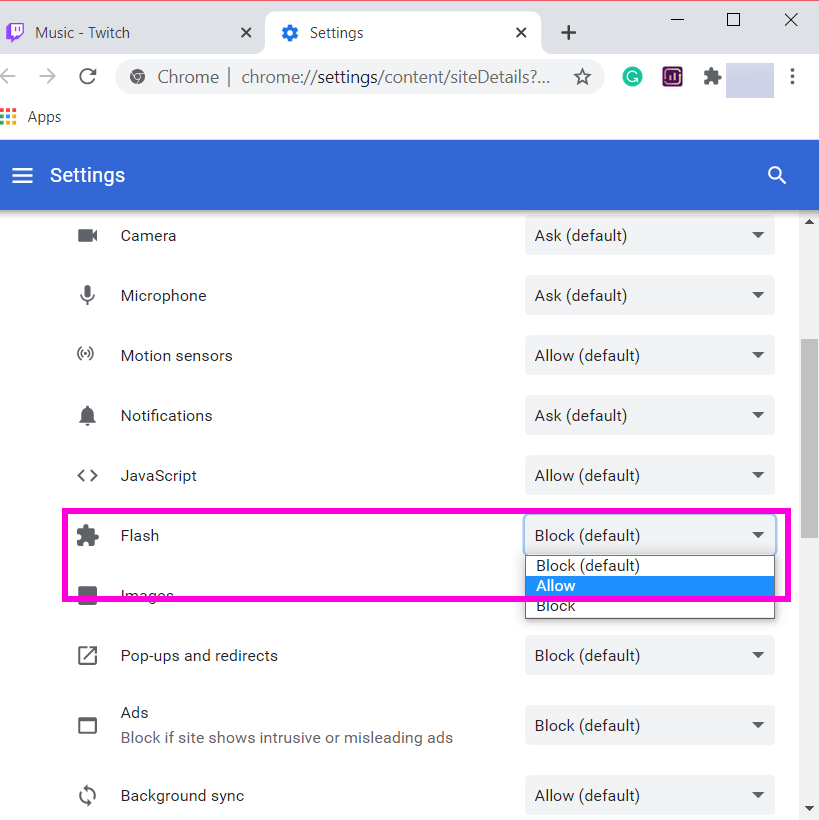
In case you use Mozilla Firefox, here are the steps to follow:
- In Firefox, enter twitch.tv in the address bar and then click on the padlock icon.
- Now, select the arrow beside the Connection option and then click the More Information option.
- Next, go to the Permissions tab and then navigate down to Run Adobe Flash function.
- Tick this option and select the Allow option.
Method 3: Disable or Remove Extensions
Extensions can be the reason for getting error code 5000 in Twitch. Try disabling any recently installed extension in your web browser. Follow the below steps to do so in Google Chrome browser:
Step 1: Launch Google Chrome and go to the three-dot menu option.
Step 2: Go to More Tools > Extensions option.
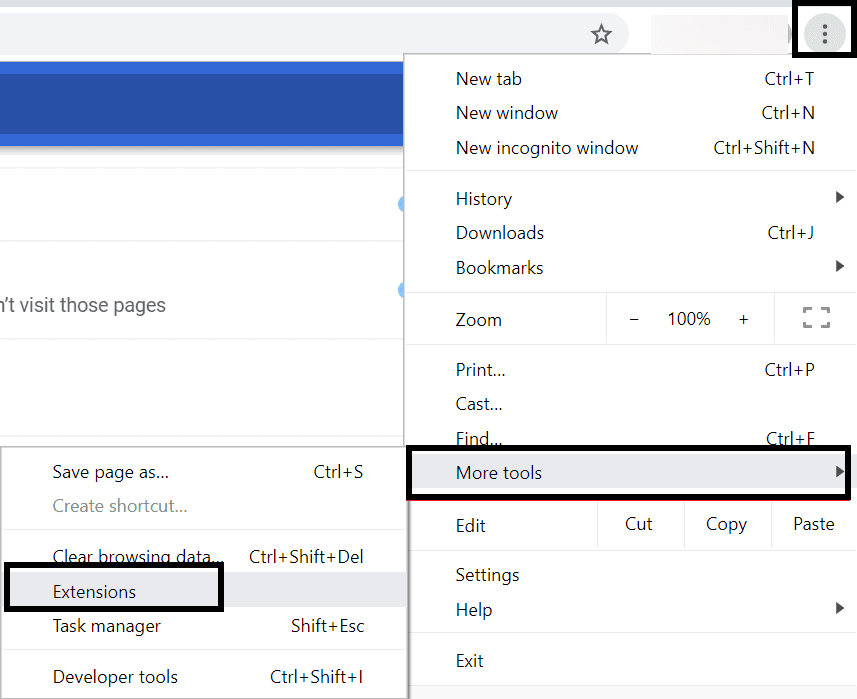
Step 3: In the Extensions page, turn off the problematic extensions by disabling them, or you can also altogether remove them.
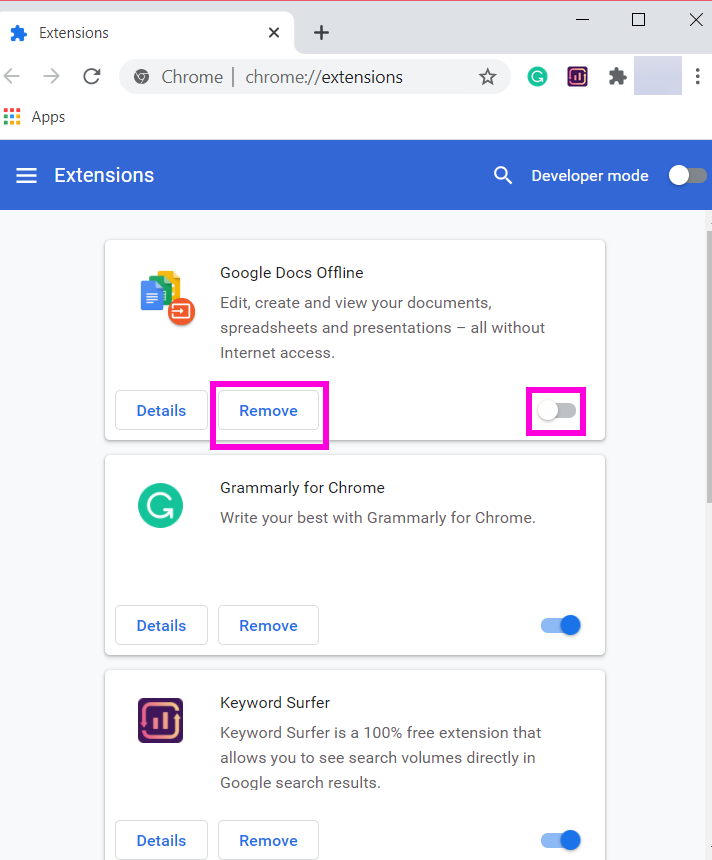
Step 4: Restart Chrome and connect with Twitch to stream videos without the error code 5000.
If you are a Firefox user, here are the steps to follow:
Step 1: In your Firefox browser, tap on the three-bar menu and then the Add-ons option.
Step 2: Now, in the Add-ons section, disable or remove extensions or plugins one by one.
Step 3: After that, restart Firefox and go to Twitch and see if the issue is still there.
Method 4: Flush the DNS
Another method to fix Twitch error 5000 is to flush the DNS. Follow the steps below:
- Go to the search bar of your computer and then type CMD.
- Open the Command Prompt using the “Run as Administrator” privilege by right-clicking on the search result.
- Now type the following command in the CMD: ipconfig/flushdns
- Press Enter and then let the process complete until you see a “Successfully flushed the DNS Resolver Cache” message.
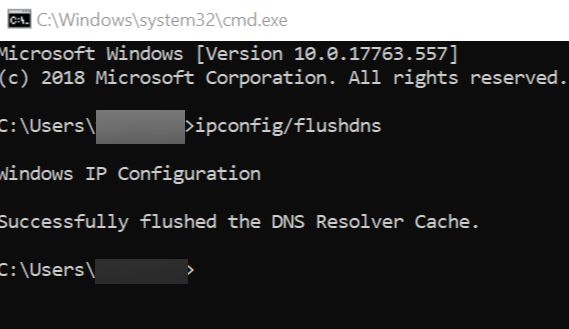
Now, relaunch the Chrome browser, and you will be able to smoothly play videos on Twitch in case DNS was causing the error.
Method 5: Change Browser
If nothing works, there is one more trick to fix Twitch error 5000 content not available. If the problem is with your browser, try using Twitch TV on some other web browser.
Conclusion
Twitch provides you a seamless video streaming and watching experience until and unless you get a Twitch Error 5000 “Content not available.” This error occurs for multiple reasons such as browser cache, extensions, flash plugin, etc. But you don’t need to worry. The problem can be fixed using different ways that are mentioned above.
