
Close Menu
  • Home
  • Tech News
  • Business
  • How to
  • Technology
    • Internet
    • Software
    • Android
    • Apple
    • Laptops
  • Cryptocurrency
    • Bitcoin
    • Blockchain
  • Alternatives
    • Troubleshooting
    • Discord
    • Gaming
    • Buyer Guides
What's New

How to Fix iPhone Battery Draining Fast After an iOS Update (9 Proven Fixes)

October 24, 2026

How to Speed Up a Slow Android Phone in 2026 (10 Proven Performance Tweaks)

October 23, 2026

How to Fix Windows 11 Wi-Fi Keeps Disconnecting (9 Proven Solutions)

October 22, 2026
Facebook X (Twitter) LinkedIn
  • About
  • Contact
  • Privacy Policy
  • Terms of Service
  • Write For Us
  • Editorial Guidelines
Facebook X (Twitter) LinkedIn
TechDentro
  • Home
  • Tech News
  • Business
  • How to
  • Technology
    • Internet
    • Software
    • Android
    • Apple
    • Laptops
  • Cryptocurrency
    • Bitcoin
    • Blockchain
  • Alternatives
    • Troubleshooting
    • Discord
    • Gaming
    • Buyer Guides
TechDentro
Home » How to Fix iPhone Battery Draining Fast After an iOS Update (9 Proven Fixes)
Apple

How to Fix iPhone Battery Draining Fast After an iOS Update (9 Proven Fixes)

SteveBy SteveOctober 24, 2026No Comments2 Mins Read
Facebook Twitter Pinterest LinkedIn
How to Fix iPhone Battery Draining Fast After an iOS Update (9 Proven Fixes)
Share
Facebook Twitter LinkedIn Pinterest Telegram WhatsApp

Noticing your iPhone battery percentage dropping rapidly within hours of installing a new iOS update is a widespread issue. While Spotlight re-indexing and Photos machine-learning scans naturally consume extra power for the first 24 to 48 hours after an update, persistent battery drain is usually triggered by new background services, Always-On Display settings, and 5G modem polling.

Table of Contents

Toggle
  • 1. Restrict Background App Refresh to Wi-Fi or Off
  • 2. Switch Cellular Data from 5G On to 5G Auto
  • 3. Audit Lock Screen Widgets and Live Activities
  • 4. Disable Unnecessary System Location Services
  • 5. Turn Off Haptic Keyboard Feedback
  • 6. Perform a Hard Force Restart to Clear Stuck Background Daemons
    • 📌 Save This Quick-Reference Guide on Pinterest!

1. Restrict Background App Refresh to Wi-Fi or Off

Allowing dozens of apps to fetch content over cellular data in the background is the #1 hidden battery killer on iOS.

  1. Open Settings → General → Background App Refresh.
  2. Either set the master setting to Wi-Fi, or individually toggle off heavy apps like Instagram, Facebook, X, and retail shopping apps.

2. Switch Cellular Data from 5G On to 5G Auto

Forcing a continuous 5G connection in areas with moderate signal strength causes your iPhone’s Qualcomm modem to run hot and drain battery up to 25% faster.

  1. Go to Settings → Cellular → Cellular Data Options → Voice & Data.
  2. Select 5G Auto so your iPhone automatically drops to LTE when 5G speeds aren’t needed.

3. Audit Lock Screen Widgets and Live Activities

Lock Screen widgets (Weather, Fitness, Stocks) and Live Activities constantly poll GPS and network APIs every time your screen wakes.

  1. Long-press your Lock Screen, tap Customize, and remove widgets you don’t check daily.
  2. On Pro models, go to Settings → Display & Brightness → Always On Display and turn off Show Wallpaper.

4. Disable Unnecessary System Location Services

Hidden iOS system services ping your GPS chip hundreds of times a day.

  1. Navigate to Settings → Privacy & Security → Location Services.
  2. Scroll to the very bottom and tap System Services.
  3. Turn off Significant Locations, iPhone Analytics, and Routing & Traffic.

5. Turn Off Haptic Keyboard Feedback

Apple herself notes in official support documentation that turning on Keyboard Haptics engages the Taptic Engine on every single keystroke, measurably impacting battery life. Disable it under Settings → Sounds & Haptics → Keyboard Feedback → Haptic.

6. Perform a Hard Force Restart to Clear Stuck Background Daemons

If Spotlight indexing hangs after an OTA iOS update, your iPhone feels warm even while idle. Quickly press and release Volume Up, press and release Volume Down, then press and hold the Side Button until the Apple logo appears.


📌 Save This Quick-Reference Guide on Pinterest!

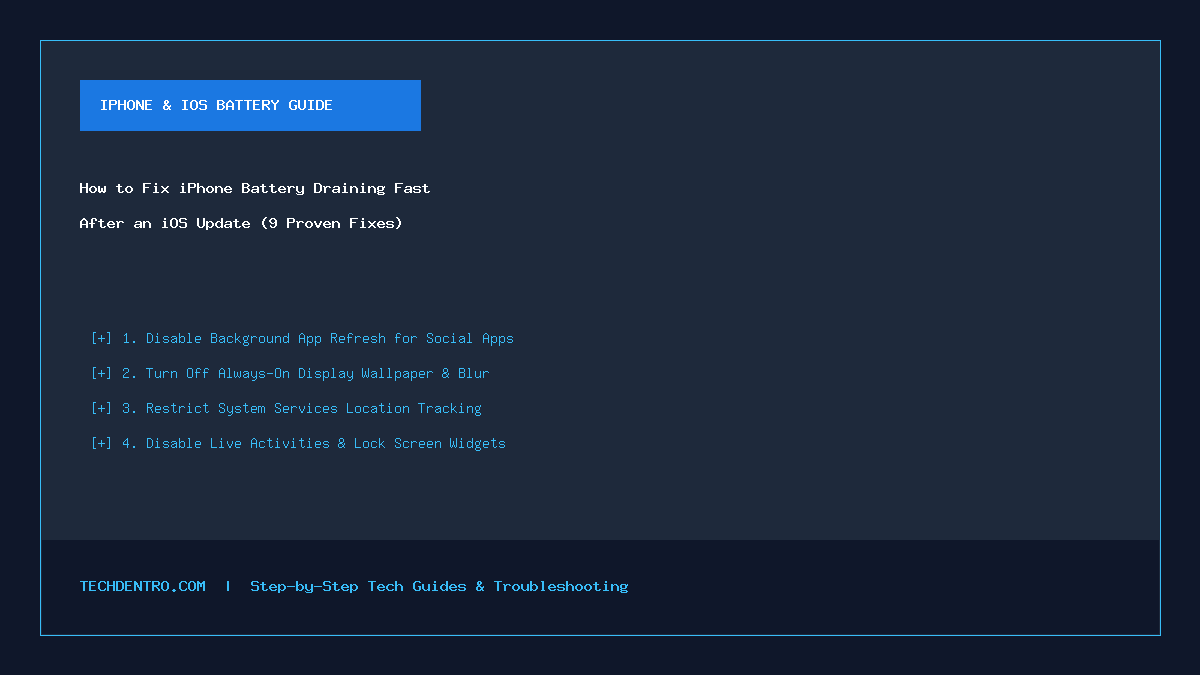
Found this guide helpful? Save the checklist below to your Tech Tips & Troubleshooting board on Pinterest (@Techdentro) for quick access anytime!

How to Fix iPhone Battery Draining Fast After an iOS Update (9 Proven Fixes)
Share. Facebook Twitter Pinterest LinkedIn Telegram WhatsApp
Steve

Steve currently serves as a chief editor at Techdentro, covering all things Tech, from laptops and desktops to keyboards and mice. He's also passionate about solving android mobile issues.

Related Posts

How to Speed Up a Slow Android Phone in 2026 (10 Proven Performance Tweaks)

October 23, 2026

How to Fix Windows 11 Wi-Fi Keeps Disconnecting (9 Proven Solutions)

October 22, 2026

How to Fix ‘Wi-Fi Connected But No Internet Access’ in Windows 11 (9 Proven Fixes)

October 21, 2026
Leave A Reply Cancel Reply

Recent News

October 24, 20262 Mins Read

How to Fix iPhone Battery Draining Fast After an iOS Update (9 Proven Fixes)

October 23, 20263 Mins Read

How to Speed Up a Slow Android Phone in 2026 (10 Proven Performance Tweaks)

October 22, 20263 Mins Read

How to Fix Windows 11 Wi-Fi Keeps Disconnecting (9 Proven Solutions)

October 21, 20267 Mins Read

How to Fix ‘Wi-Fi Connected But No Internet Access’ in Windows 11 (9 Proven Fixes)

September 19, 20263 Mins Read

The Power of Nature Connection: How Forest Therapy Helps People Reconnect With the Natural World

Follow Us
  • Facebook
  • Twitter
  • LinkedIn

Top Posts

Internet

Internet Chick – More Than Just A Platform 

By SteveJanuary 10, 2024
Business

The Smart Way to Make Money in the Digital Age

By Qamer JawedDecember 16, 2025
Technology

Why Businesses Should Invest in Sound Reinforcement Systems

By Syed QasimJuly 23, 2024

techdentro logo


TechDentro is the place where you can find solutions for your tech problems, discover the latest releases, and get opinions from the experts.

Email: techdentro@gmail.com

news logo

Most Popular

Best Tips for Choosing a Prebuilt Gaming PC

October 10, 202534 Views

The Strategic Advantage of Outsourcing Phone Answering Services

June 10, 202463 Views
Recent Posts

How to Fix iPhone Battery Draining Fast After an iOS Update (9 Proven Fixes)

October 24, 2026

How to Speed Up a Slow Android Phone in 2026 (10 Proven Performance Tweaks)

October 23, 2026
serpzilla
Facebook X (Twitter) LinkedIn
  • About
  • Contact
  • Privacy Policy
  • Terms of Service
  • Write For Us
  • Editorial Guidelines
© 2026 Techdentro All Rights Reserved

Type above and press Enter to search. Press Esc to cancel.