If your PC fans spin loudly while doing basic tasks or Task Manager shows 80%–100% memory and CPU utilization at idle, runaway background services in Windows 11 are consuming your hardware resources. Here is how to identify the exact culprits and reclaim gigabytes of RAM in minutes.
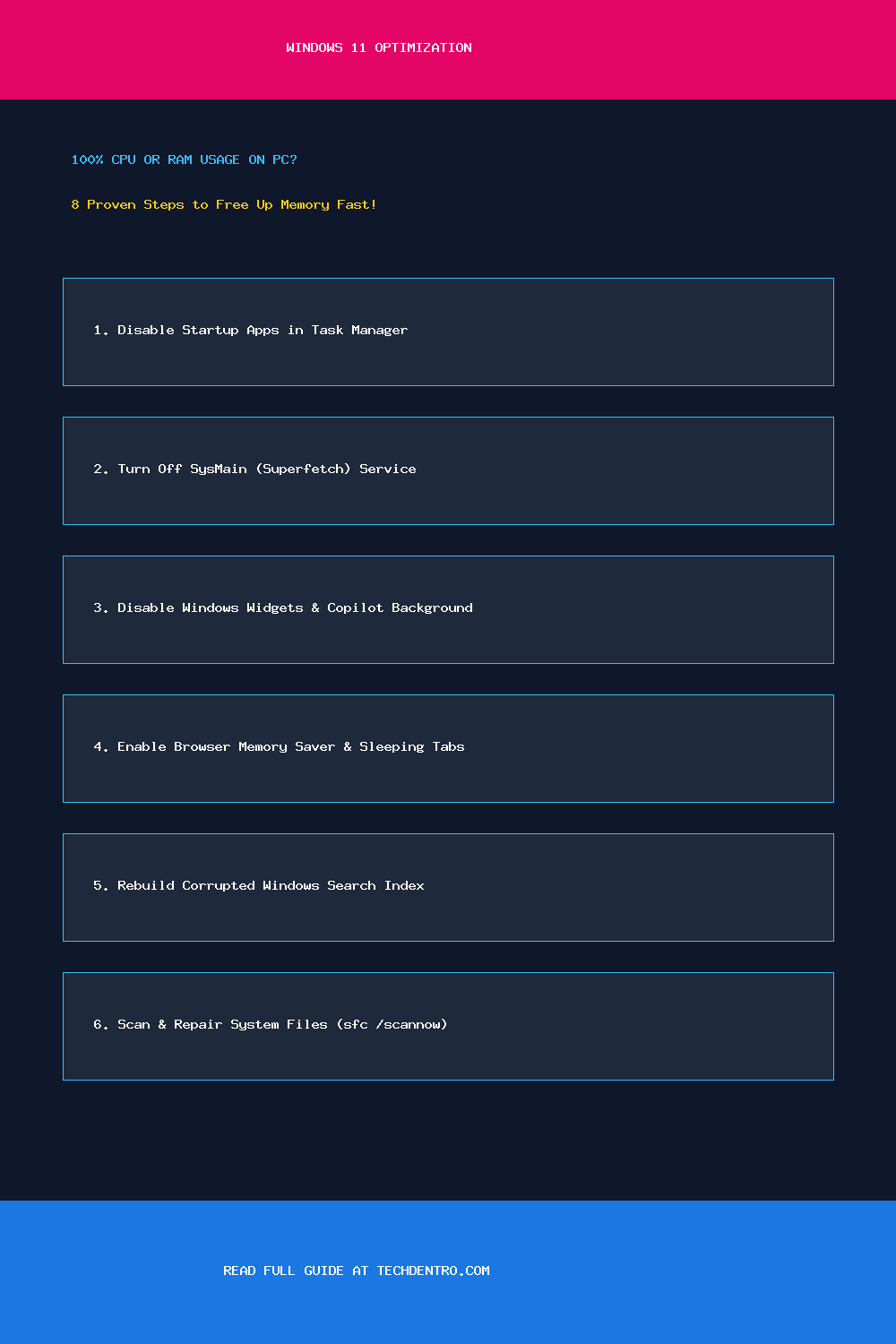
1. Audit and Disable High-Impact Startup Programs
Launchers like Steam, Epic Games, Spotify, Discord, Adobe Creative Cloud, and Microsoft Teams silently load into RAM every time you boot.
- Press Ctrl + Shift + Esc to open Task Manager.
- Click the Startup apps icon on the left sidebar.
- Sort by Startup impact, right-click any non-essential app marked High, and select Disable.
2. Disable the SysMain (Superfetch) Service if Disk & RAM Spike
SysMain preloads frequent apps into memory, which can cause high RAM and disk usage on certain NVMe/SSD configurations.
- Press Win + R, type
services.msc, and press Enter. - Scroll down and double-click SysMain.
- Click Stop, change Startup type to Disabled, and click OK.
3. Turn Off Taskbar Widgets (WebView2 Memory Hog)
The Windows 11 Widgets board runs multiple msedgewebview2.exe background processes that easily consume 400MB–900MB of RAM even when you never open the panel. Right-click an empty spot on your Taskbar → Taskbar settings → toggle Widgets to Off.
4. Enable Memory Saver in Chrome and Microsoft Edge
Modern browsers are the largest consumers of system memory. In Chrome, go to Settings → Performance and toggle Memory Saver On (set to Balanced or Maximum) so inactive background tabs automatically hibernate.
5. Fix Windows Management Instrumentation (WMI Provider Host) High CPU
If WmiPrvSE.exe is pegging your CPU above 30%, open services.msc, locate Windows Management Instrumentation, right-click it, and select Restart.
6. Repair Corrupted System Files with DISM and SFC
Broken system DLLs cause Windows Update and Defender processes to loop endlessly. Open Command Prompt as Administrator and run:
DISM.exe /Online /Cleanup-image /Restorehealth
sfc /scannow
📌 Save This Quick-Reference Guide on Pinterest!
Found this guide helpful? Save the checklist below to your Tech Tips & Troubleshooting board on Pinterest (@Techdentro) for quick access anytime!