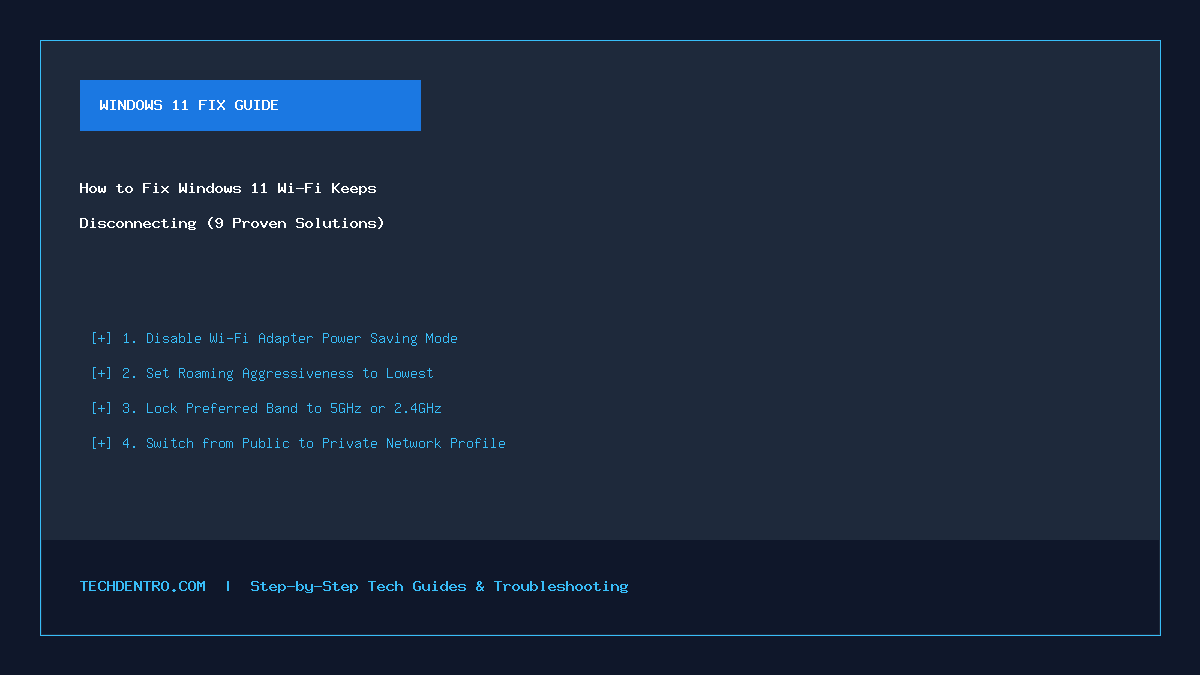
Experiencing frequent Wi-Fi disconnects on your Windows 11 laptop or desktop can bring your work, gaming, or video calls to a grinding halt. Whether your wireless connection drops every few minutes, fails to reconnect after waking from sleep, or bounces between 2.4GHz and 5GHz bands, network instability in Windows 11 is almost always caused by aggressive power-saving defaults or driver conflicts.
Fix 1: Disable Wi-Fi Power Saving in Device Manager
By default, Windows 11 turns off power to your wireless card during brief idle moments to conserve battery, which frequently drops active router sessions.
- Right-click the Start button and open Device Manager.
- Expand Network adapters and double-click your Wi-Fi card (Intel, Realtek, Qualcomm, or MediaTek).
- Open the Power Management tab and uncheck Allow the computer to turn off this device to save power.
- If your laptop uses Modern Standby and hides that tab, go to the Advanced tab, select MIMO Power Save Mode, and set it to No SMPS.
Fix 2: Adjust Wireless Roaming Aggressiveness
If you use a mesh Wi-Fi system or dual-band router, high roaming sensitivity causes your PC to constantly disconnect while hunting for a slightly stronger access point.
- In Device Manager → Network adapters, open your Wi-Fi adapter Properties → Advanced tab.
- Click Roaming Aggressiveness (or Roaming Sensitivity).
- Change the value from 3. Medium to 1. Lowest (if your PC stays in one room) and click OK.
Fix 3: Lock Your Preferred Wireless Band (5GHz vs. 2.4GHz)
Routers with Smart Connect combine 2.4GHz and 5GHz under a single Wi-Fi name (SSID). When signal strength fluctuates, your adapter drops the connection while switching bands.
- Open your Wi-Fi adapter’s Advanced tab in Device Manager.
- Select Preferred Band.
- Set it to Prefer 5GHz band for high speed near the router, or Prefer 2.4GHz band for stable range through walls.
Fix 4: Reset TCP/IP, Winsock, and DHCP Lease
Corrupted socket states after a Windows 11 cumulative update frequently trigger intermittent dropouts.
- Open Command Prompt as Administrator.
- Run these commands in order:
netsh winsock reset netsh int ip reset ipconfig /release ipconfig /renew ipconfig /flushdns - Restart your PC to apply the clean network stack.
Fix 5: Change Power Plan Wireless Adapter Settings to Maximum Performance
Ensure your Windows power plan is not throttling PCIe and wireless link states on battery power.
- Press Win + R, type
control powercfg.cpl, and press Enter. - Click Change plan settings → Change advanced power settings.
- Expand Wireless Adapter Settings → Power Saving Mode and set both On battery and Plugged in to Maximum Performance.
Fix 6: Disable WMM (Wi-Fi Multimedia) or 802.11be/ax Incompatibilities
When connecting a newer Wi-Fi 6E/7 laptop to an older router, packet scheduling mismatches can reset the connection every 10–15 minutes. In the adapter Advanced tab, set 802.11n/ac/ax Wireless Mode to 802.11ac to verify stability.
📌 Save This Quick-Reference Guide on Pinterest!
Found this guide helpful? Save the checklist below to your Tech Tips & Troubleshooting board on Pinterest (@Techdentro) for quick access anytime!