Few things are more frustrating than seeing the “No Internet, Secured” status in your Windows 11 system tray when every other device in your home or office is browsing at full speed. When Windows 11 reports that your Wi-Fi is connected but has no internet access, it means your laptop or desktop has successfully authenticated with your local wireless router, but cannot route packets out to the wider web—or Windows’ internal connectivity check (NCSI) is failing to resolve DNS.
In this comprehensive troubleshooting guide, we walk you through 9 proven fixes—ordered from the fastest 60-second command-line resets to deeper driver and registry adjustments—so you can get your Windows 11 internet connection back online immediately.
Why Does Windows 11 Say “Connected, No Internet”?
Before diving into the fixes, it helps to understand what triggers this error on Windows 11 (especially after cumulative 24H2/25H2 updates):
- Corrupted Winsock or TCP/IP Stack: Cached network socket states often break after Windows updates or sudden power loss.
- Stale DHCP IP Lease: Your PC may have assigned itself an Automatic Private IP Address (
169.254.x.x) instead of receiving a valid local IP from your router. - Unresponsive ISP DNS Servers: Your connection works at the IP layer, but domain names cannot be translated into IP addresses.
- Aggressive Wi-Fi Adapter Power Management: Windows 11 sometimes puts Intel, Realtek, or MediaTek wireless cards into a low-power state after sleep mode.
- VPN Kill Switches & Residual Proxy Filters: Third-party VPN clients or security suites leave behind virtual network filtering drivers that block outbound traffic.
Fix 1: Reset the TCP/IP Stack, Winsock Catalog, and DNS Cache (Fastest Fix)
In over 60% of cases, flushing your DNS cache and resetting the Windows Socket API (Winsock) resolves the “No Internet, Secured” error without changing any hardware settings.
- Press Win + S, type
cmd, right-click Command Prompt, and select Run as administrator. - Run each of the following five commands one by one, pressing Enter after each:
netsh winsock reset netsh int ip reset ipconfig /release ipconfig /renew ipconfig /flushdns - Restart your Windows 11 PC and test your browser.
Fix 2: Switch to Cloudflare (1.1.1.1) or Google Public DNS
If your router’s default ISP DNS server is experiencing an outage, your Wi-Fi will stay connected while every website fails to load. Switching to encrypted, high-speed public DNS servers fixes this instantly.
- Open Settings (Win + I) → Network & internet → Wi-Fi.
- Click on your active Wi-Fi network’s properties.
- Scroll down to DNS server assignment and click Edit.
- Change the drop-down from Automatic (DHCP) to Manual, then toggle IPv4 to On.
- Enter the following addresses:
- Preferred DNS:
1.1.1.1(or Google’s8.8.8.8) - DNS over HTTPS (DoH): On (automatic template)
- Alternate DNS:
1.0.0.1(or Google’s8.8.4.4)
- Preferred DNS:
- Click Save and reconnect to your Wi-Fi network.
Fix 3: Disable Wi-Fi Adapter Power Saving Mode
If your internet drops every time your laptop wakes up from sleep or runs on battery power, Windows 11’s power management feature is likely throttling your wireless card.
- Right-click the Start button and select Device Manager.
- Expand the Network adapters section.
- Right-click your wireless adapter (e.g., Intel(R) Wi-Fi 6E AX211, Realtek RTL8852AE, or MediaTek Wi-Fi 6 MT7921) and click Properties.
- Switch to the Power Management tab.
- Uncheck “Allow the computer to turn off this device to save power” and click OK.
Note: If you do not see the Power Management tab due to Modern Standby, go to the Advanced tab, select MIMO Power Save Mode, and change its value to No SMPS.
Fix 4: Configure Wireless Mode (802.11ax / 802.11ac Compatibility)
Older Wi-Fi 5 routers sometimes clash with Windows 11’s default Wi-Fi 6/6E (802.11ax) channel negotiation, causing the handshake to succeed while data packets drop.
- In Device Manager → Network adapters, double-click your Wi-Fi adapter.
- Open the Advanced tab.
- Click 802.11a/b/g Wireless Mode or 802.11n/ac/ax Wireless Mode.
- Temporarily change the Value from 802.11ax to 802.11ac, then click OK.
Fix 5: Disable VPN Split-Tunneling, Kill Switches, and System Proxies
If you use a VPN (such as NordVPN, ExpressVPN, ProtonVPN, or Cloudflare WARP), its background service may have activated an internet kill switch after an unexpected disconnect.
- Open your VPN client and verify that the Kill Switch or Always-On VPN toggle is disabled, then completely exit the app.
- Press Win + I → Network & internet → Proxy.
- Under Manual proxy setup, ensure Use a proxy server is set to Off.
- Under Automatic proxy setup, toggle Automatically detect settings to On.
Fix 6: Roll Back or Clean-Reinstall Your Wireless Network Driver
Sometimes Windows Update automatically pushes a buggy OEM wireless driver that breaks DHCP packet routing.
- Open Device Manager → Network adapters.
- Right-click your Wi-Fi adapter and select Properties → Driver tab.
- If the Roll Back Driver button is clickable, select it to revert to your previously working driver version.
- Otherwise, click Uninstall device (do not check “Attempt to remove the driver for this device” unless you have a backup installer downloaded), then restart your PC. Windows 11 will automatically reinstall a clean copy of the driver on boot.
Fix 7: Enable Windows NCSI Active Probing in the Registry
Occasionally, your internet works fine in your web browser, but Windows 11 still displays the globe icon (“No Internet access”) and blocks Microsoft Store, Outlook, or Spotify from connecting. This happens when the Network Connectivity Status Indicator (NCSI) probe is disabled.
- Press Win + R, type
regedit, and press Enter. - Navigate to the following key:
HKEY_LOCAL_MACHINE\SYSTEM\CurrentControlSet\Services\NlaSvc\Parameters\Internet - Double-click the EnableActiveProbing DWORD value and ensure its Value data is set to
1. - Restart your computer for the change to take effect.
Fix 8: Temporarily Test IPv6 Protocol Settings
Certain residential ISP routers assign broken IPv6 gateway addresses, causing Windows 11 to time out while attempting IPv6 connections before falling back to IPv4.
- Press Win + R, type
ncpa.cpl, and press Enter to open Network Connections. - Right-click your Wi-Fi adapter and select Properties.
- Uncheck Internet Protocol Version 6 (TCP/IPv6), leave Internet Protocol Version 4 (TCP/IPv4) checked, and click OK.
Fix 9: Run a Complete Windows 11 Network Reset
If none of the targeted methods above resolve the issue, Windows 11 includes a built-in factory reset for all network adapters and virtual switches.
- Open Settings (Win + I) → Network & internet → Advanced network settings.
- Click Network reset near the bottom of the page.
- Click Reset now and confirm. Your PC will reboot in 5 minutes and rebuild all network interfaces from scratch (you will need to re-enter your Wi-Fi password afterward).
Summary Comparison of Fixes
| Symptom | Most Likely Cause | Recommended Fix |
|---|---|---|
IP address starts with 169.254.x.x |
DHCP lease failure | Fix 1 (Winsock & IP Reset) |
Can ping 8.8.8.8 but websites won’t load |
ISP DNS outage | Fix 2 (Cloudflare / Google DNS) |
| Wi-Fi drops after waking from sleep | Adapter power saving | Fix 3 (Device Manager Power Tab) |
| Browsers work, but Microsoft apps say Offline | NCSI probe disabled | Fix 7 (EnableActiveProbing Registry) |
Frequently Asked Questions (FAQs)
Why does my phone have internet on the same Wi-Fi, but my Windows 11 laptop doesn’t?
Smartphones automatically fall back to public DNS servers or mobile data assist when a router’s DNS relay hangs, whereas Windows 11 strictly adheres to your adapter’s cached Winsock and DHCP configuration. Running netsh winsock reset and switching to 1.1.1.1 DNS resolves this discrepancy.
Will a Network Reset delete my personal files or apps?
No. A Windows 11 Network Reset only removes saved Wi-Fi passwords, Bluetooth pairings, and virtual VPN network adapters, restoring your network stack to clean factory defaults.
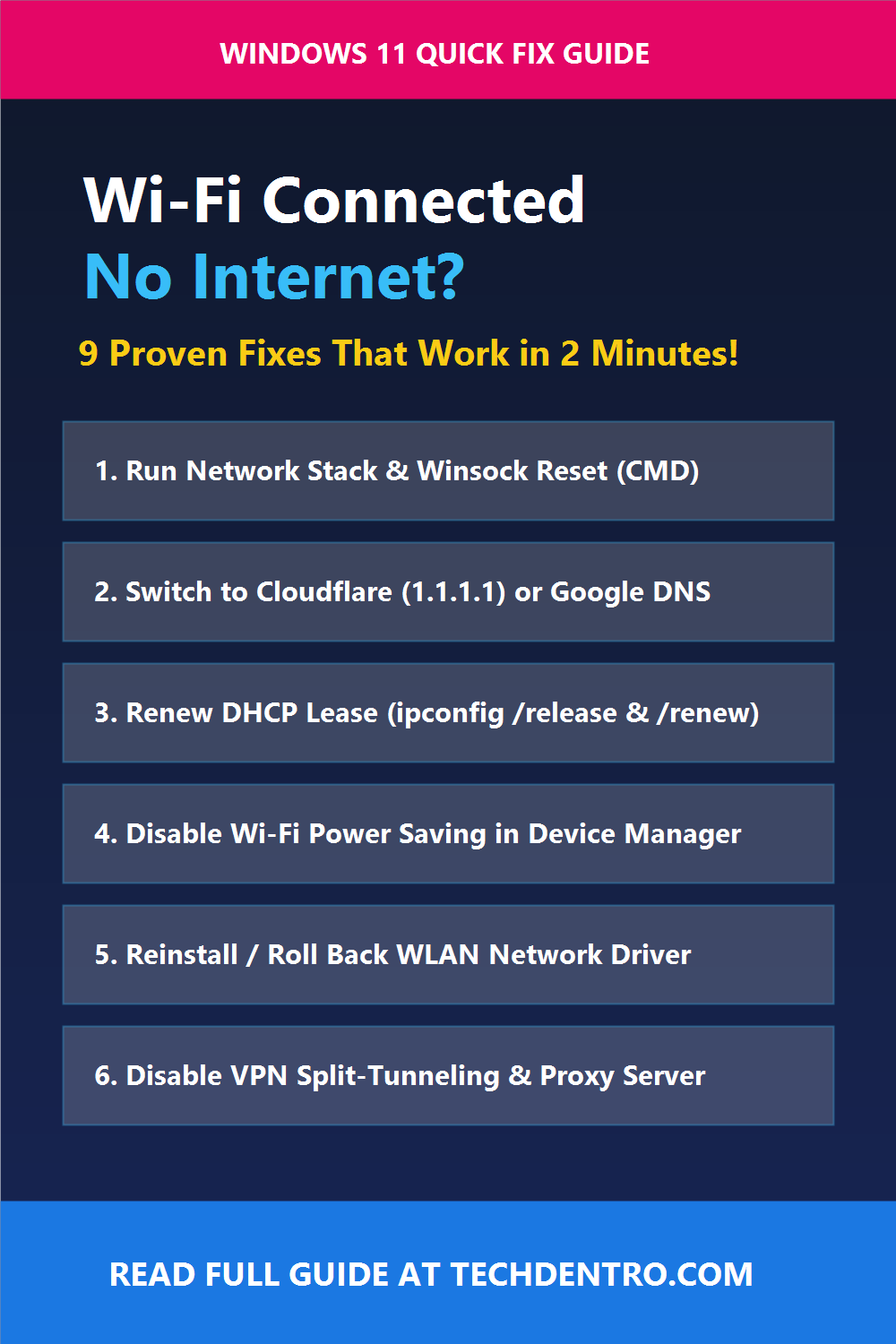
📌 Save This Guide for Later on Pinterest!
Found this Windows 11 troubleshooting guide helpful? Pin the quick-reference checklist below to your Tech Tips & Troubleshooting board on Pinterest (@Techdentro) so you always have these commands handy even when your internet drops!